Install the app
We recommend installing the app on your phone. That's where the membership dashboard is built to live, and it's the setup where unlocking doors works reliably — the location check that confirms you're at the makerspace needs a phone's GPS to be accurate enough.
You can also use the site in a regular browser on a computer if you prefer; everything else (renewing the membership, reading messages, looking at your account or profile) works fine that way. Just expect the door tiles to often appear out of range from a desktop, since computer geolocation isn't precise enough to verify you're inside the building.
Uppsala Makerspace is a Progressive Web App — that just means you install it directly from this website rather than downloading it from the App Store or Google Play, so the steps below will look a little different from what you're used to. Once installed it lives next to your other apps, opens straight to the dashboard without a browser bar in the way, and can deliver push notifications for membership reminders and personal messages. The exact install steps depend on what device you're on — iPhone/iPad, Android, or a desktop computer.
1. Open the Install page
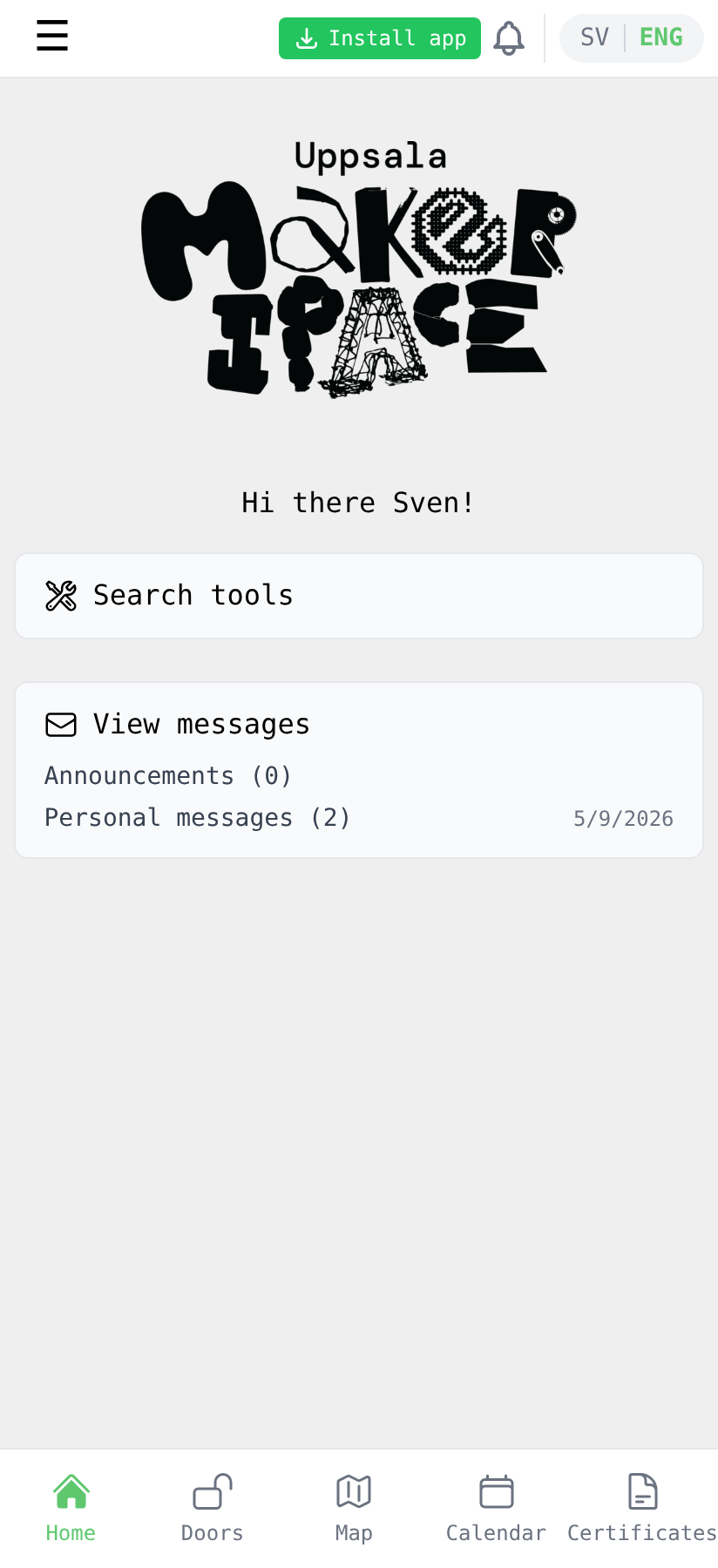
The app lives at app.uppsalamakerspace.se — open that on the device you want to install on. From there, there are two ways to reach the Install page:
- The green Install app button in the top bar of the home screen (and the login/register screens).
- The side menu — tap the ☰ icon in the top-left, then Install app.
2. Follow the steps for your device
The Install page detects whether you're on a phone or a desktop, and which browser you're using, then shows the right instructions for that combination.
iPhone / iPad (Safari)
- Tap the Share button at the bottom of Safari (the square with the arrow pointing up).
- Scroll down and tap Add to Home Screen.
- Tap Add in the top-right corner.
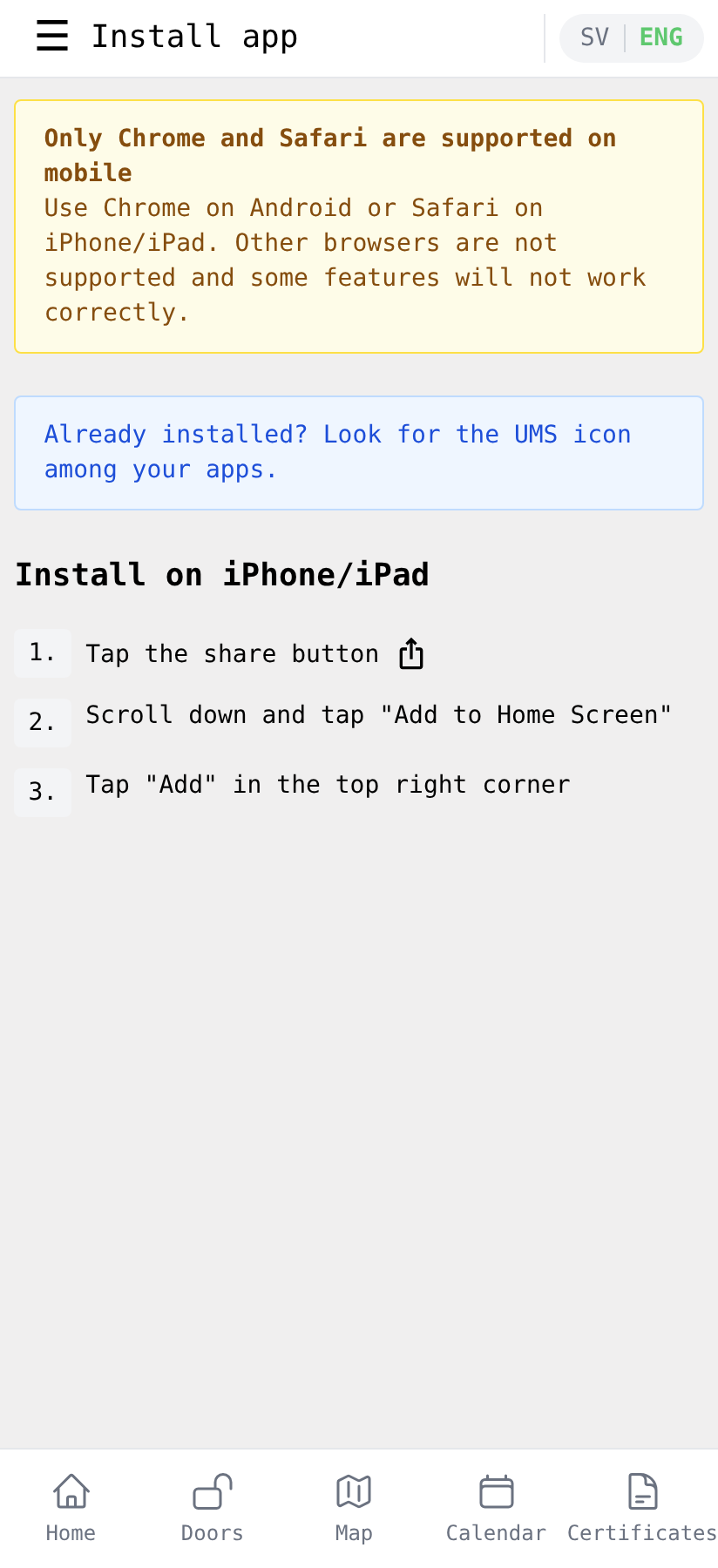
Make sure you're using Safari. Other iOS browsers (Chrome, Firefox, Edge) can't install web apps on Apple devices because of platform restrictions.
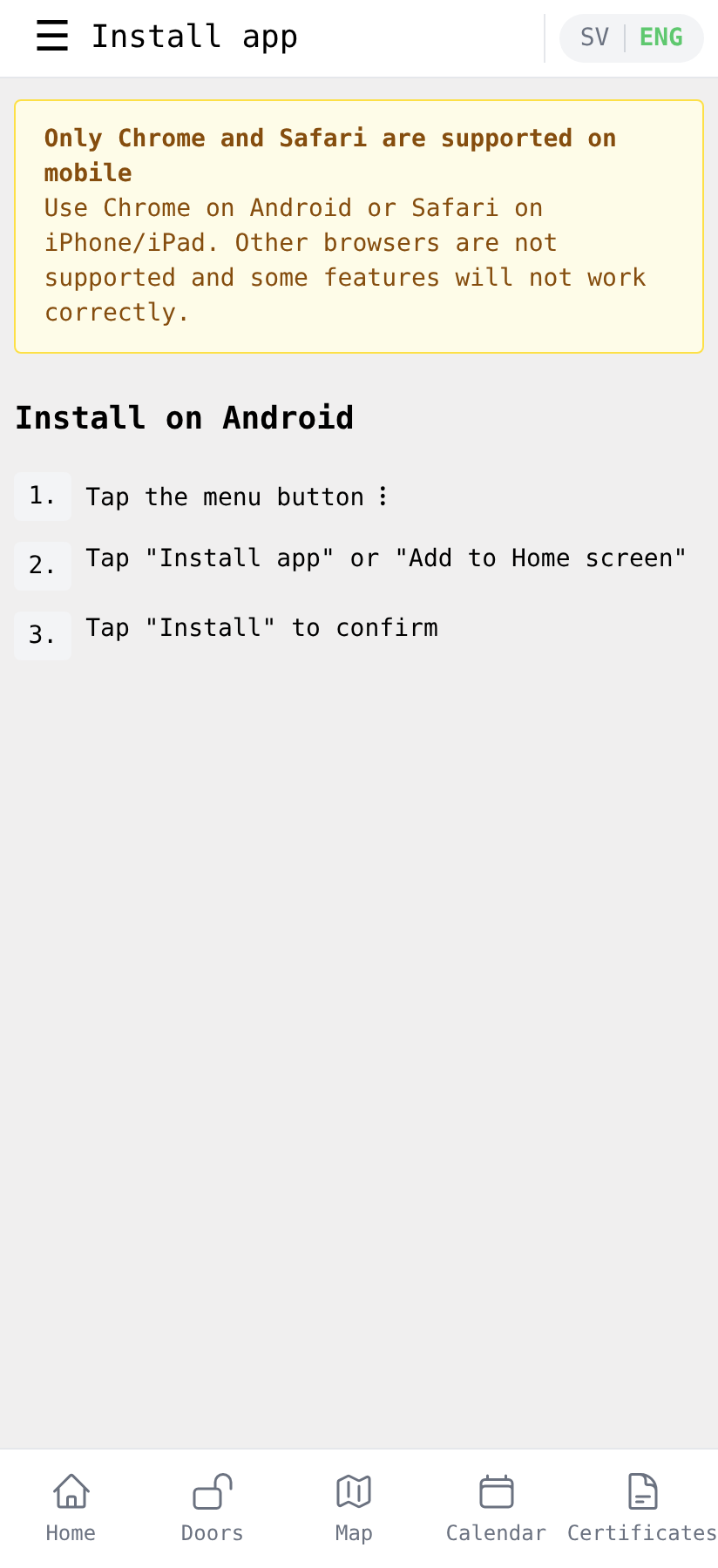
Android
We recommend Chrome on Android — its install support is the most reliable. Other Chromium-based browsers (Edge, Brave, Samsung Internet) usually also work. Firefox needs the manual route below.
If your browser supports it, the Install page shows a single Install app button — tap it, confirm in the system dialog that appears, and the app is on your phone.
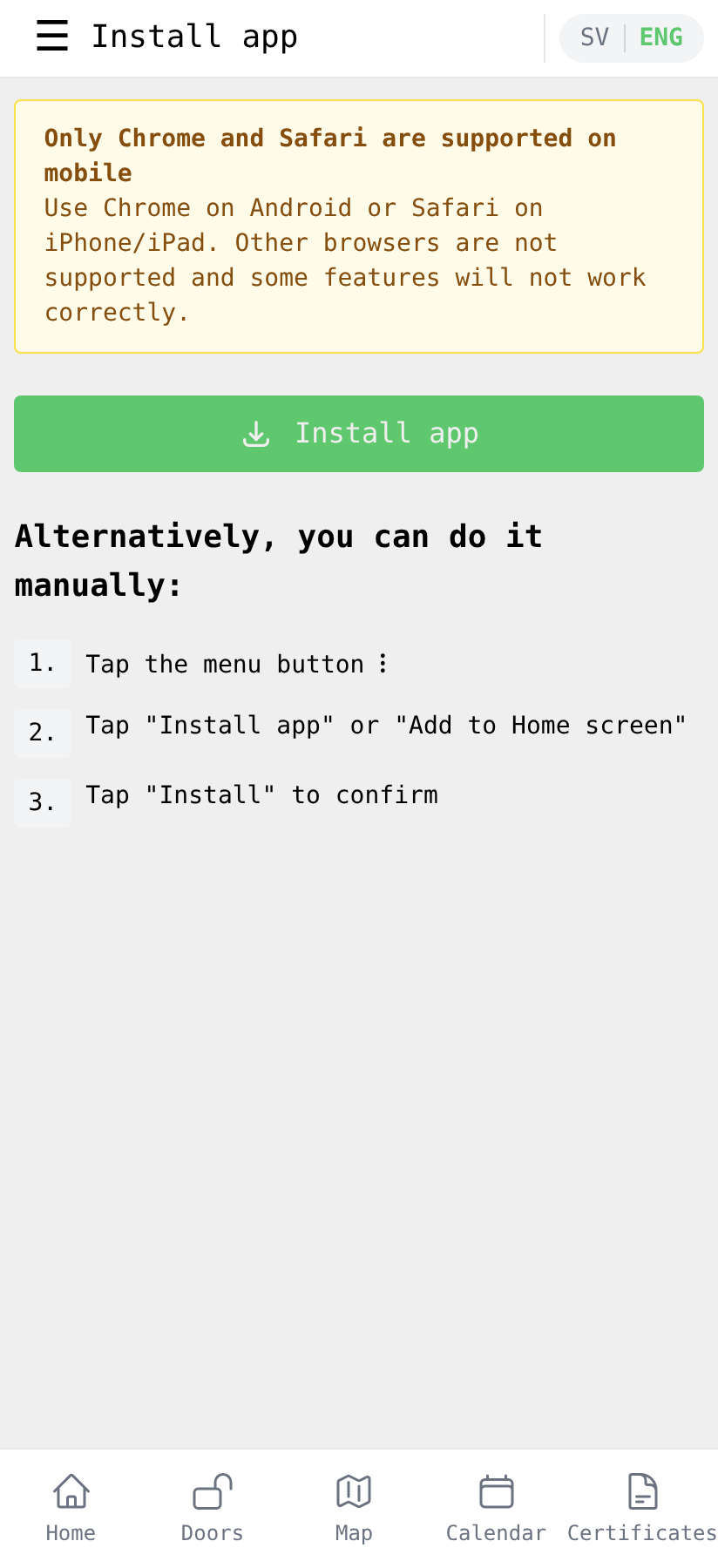
If you don't see that button (for example on Firefox), do it manually:
- Tap the browser menu (⋮ in the top-right).
- Tap Install app or Add to Home screen.
- Tap Install to confirm.
Computer
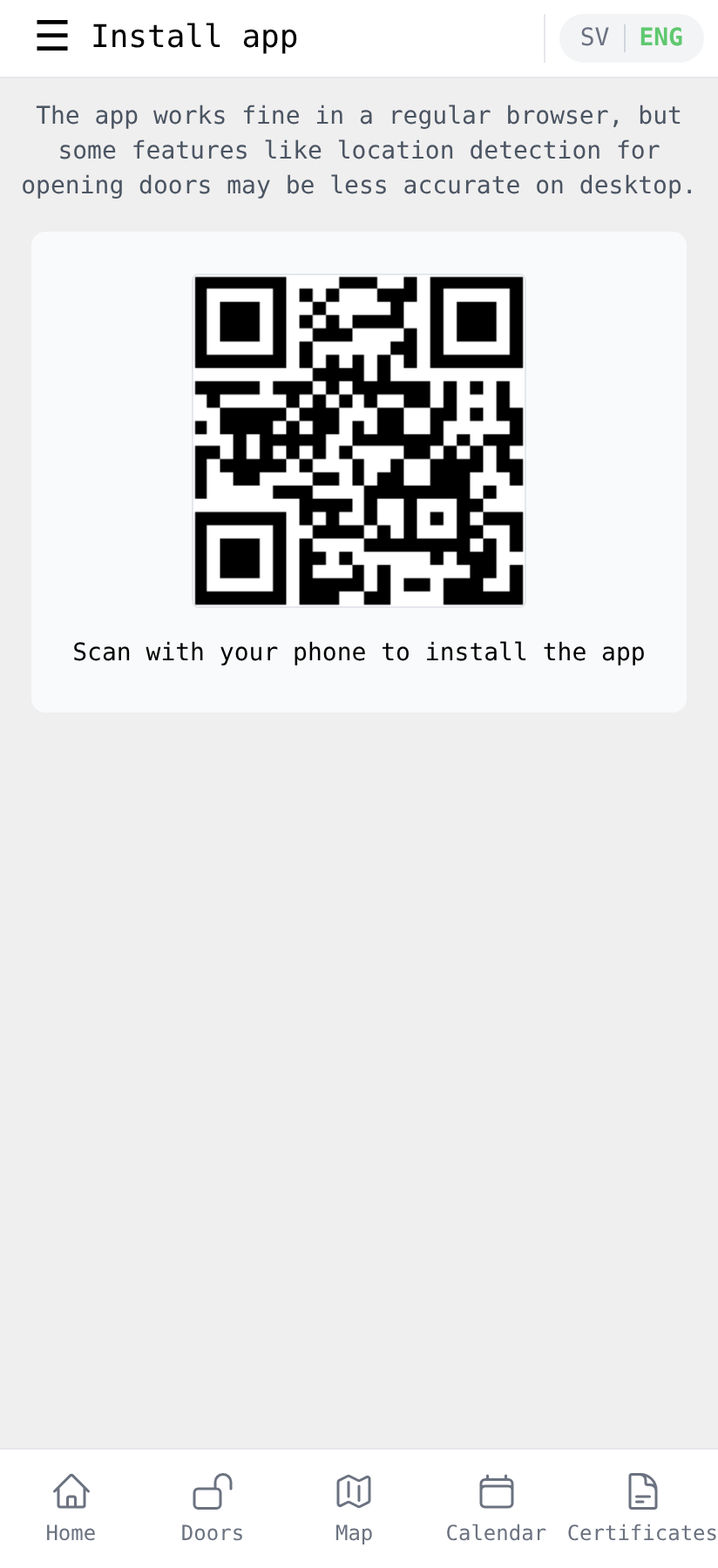
The makerspace app is mainly intended for your phone, but you can still install it from a computer indirectly. The Install page on a desktop browser shows a QR code — open your phone's camera, point it at the screen, and follow the link the camera offers. That opens the install flow on the phone.
3. Open the installed app
After installation finishes, look for the UMS icon among your apps (next to your other phone apps, just like any installed app).
The first time you open it, sign in with the email and password (or Google) you used for the account. After that you'll stay signed in and the app opens straight to the dashboard.
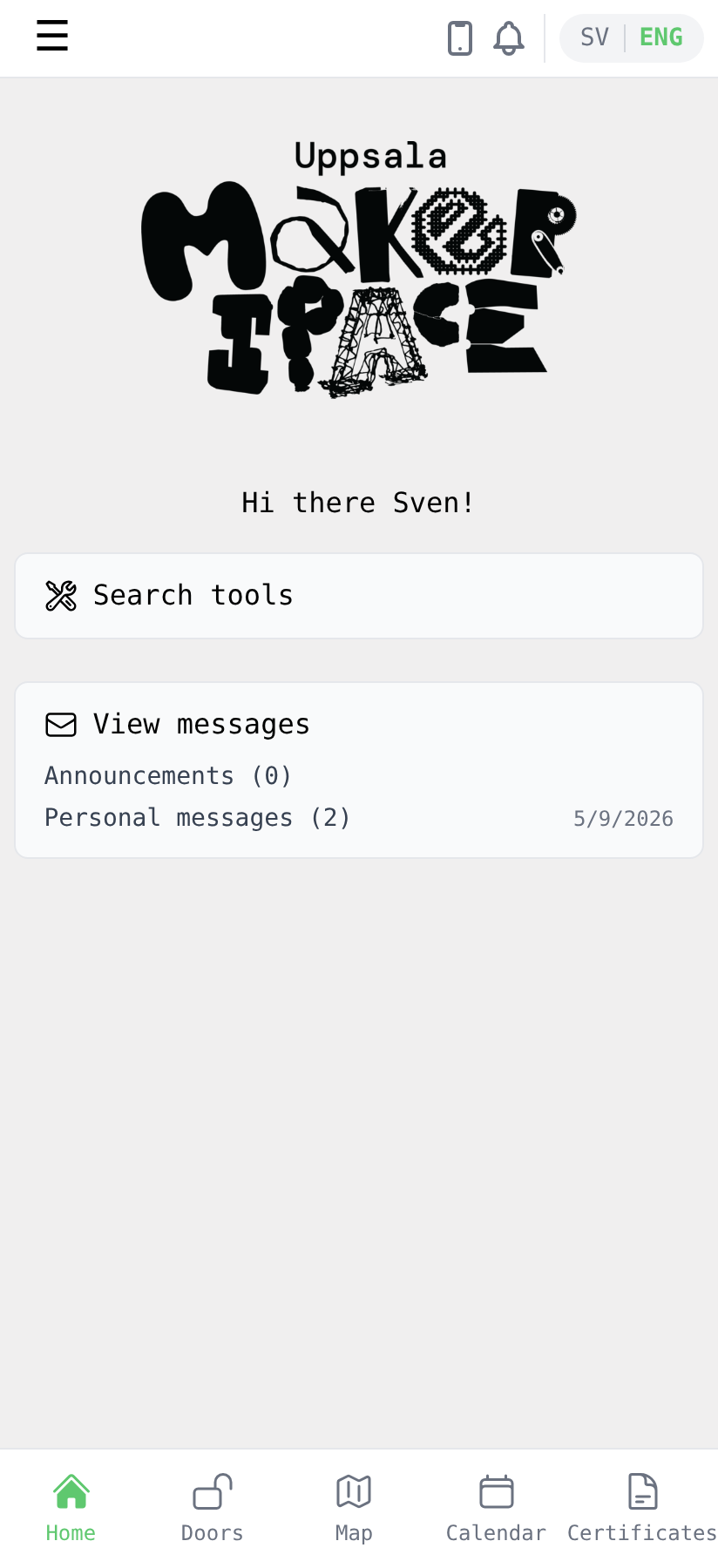
You can tell at a glance that you're in the installed version: the top bar shows a small phone icon next to the bell, where the green Install app button used to be.
4. Allow notifications and location
When the app (or your phone's system) asks, we recommend allowing two permissions:
- Notifications — so the app can remind you about 14 days before your membership expires, and let you know when there's a new announcement or a personal message from the board.
- Location — needed when you tap a door tile to unlock it: the makerspace verifies that you're actually standing at the entrance before opening the lock. Without location access, the door tiles will read out of range no matter where you are.
You'll see system prompts asking for each. Both can be changed later in your phone's settings if you change your mind.
Troubleshooting: the doors won't open
If you tap a door tile and it stays grey with an out of range label even though you're standing at the makerspace, the most likely cause is that the app doesn't have permission to use your location. Here's how to fix that:
On Android: long-press the UMS icon on your home screen, tap App info (the ⓘ button on the popup), then Permissions → Location, and pick Allow only while using the app. You can also reach it via Settings → Apps → UMS → Permissions.
On iPhone/iPad: open Settings → Safari → Location and make sure it isn't set to Deny. If it's set to Ask, the next tap on a door tile in the app should trigger a fresh permission prompt — tap Allow when you see it. (iOS treats Home Screen web apps as part of Safari, so location permission lives under Safari rather than under a separate UMS entry in the app list.)
Once permission is granted, refresh the Doors page or tap a door tile again. The grey out of range label should turn into a tappable green circle.
That's it — welcome to the app on your home screen!